Instrukcja obsługi StarTech.com MSTDP122DP
StarTech.com Konwerter audio/wideo MSTDP122DP
Przeczytaj poniżej 📖 instrukcję obsługi w języku polskim dla StarTech.com MSTDP122DP (1 stron) w kategorii Konwerter audio/wideo. Ta instrukcja była pomocna dla 28 osób i została oceniona przez 8 użytkowników na średnio 5.0 gwiazdek
Strona 1/1
Quick-Start Guide
To view manuals, FAQs, videos, drivers, downloads, technical drawings, and more, visit www.startech.com/support.
Manual Revision: February 6, 2020 10:29 AM
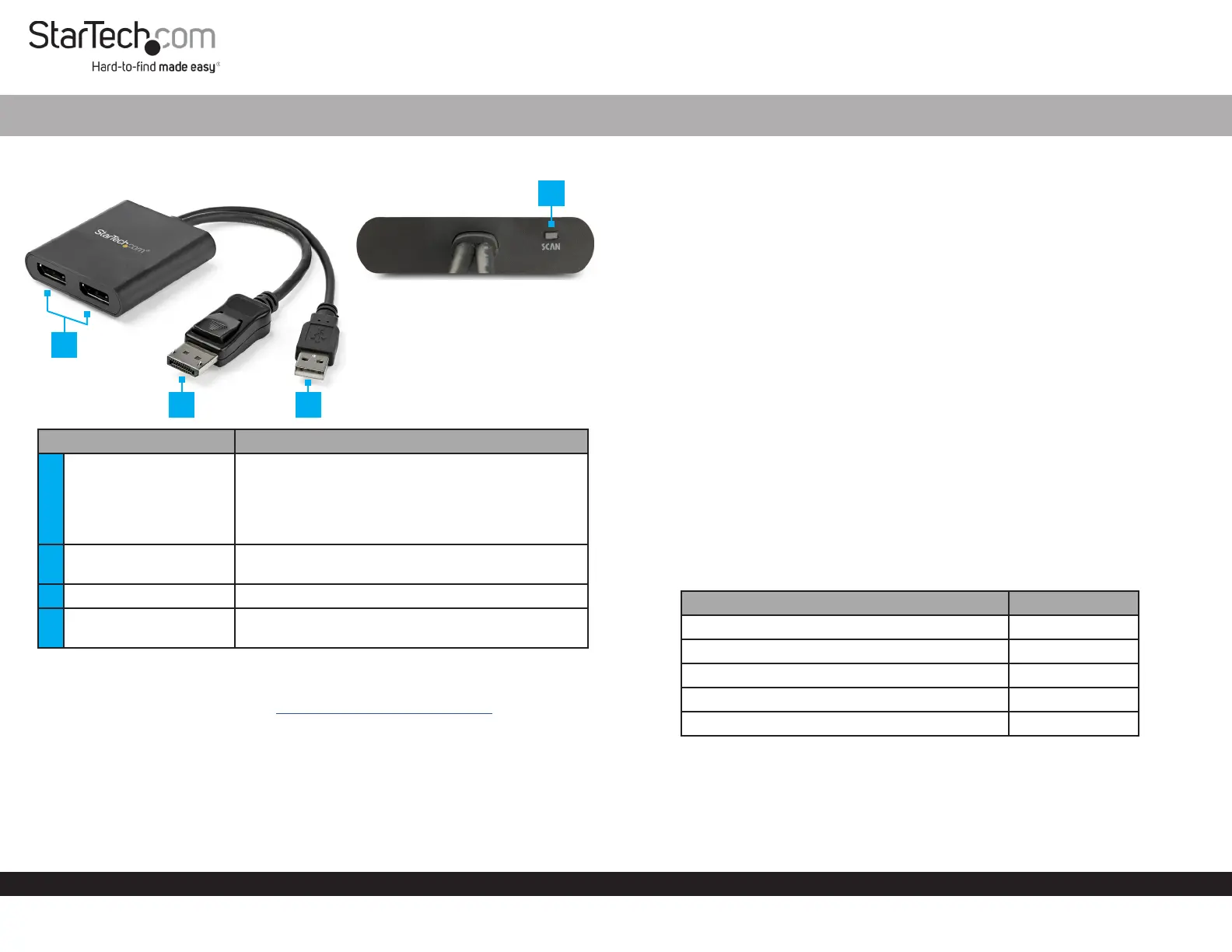
Product Diagram (MSTDP122DP)
ComponentFunction
1DisplayPort Connector
• Connects the Hub to the Host Computer.
• After the MST hub has been connected to the
Host Computer it may be necessary to initiate
the operation of additional displays from within
your Windows Display Settings.
2
USB-A Power
Connector
• Connect the Hub to a USB Power Adapter.
3DisplayPort Ports x 2• Connect up to 2 Display Devices to the Hub.
4 Scan Button
• Re-syncs all of the attached displays, and can be
utilized if any of the displays are not detected.
Requirements
For the latest requirements, please visit www.startech.com/MSTDP122DP
• DisplayPort 1.2 enabled Host Computer x 1
Note: MST is certied for operation with Microsoft® Windows 10, 8, 8.1, and 7 devices.
• DisplayPort Monitors x 2
• DisplayPort Cables (max.15 ft.) x 2
• USB Power Adapter x 1
Multi Stream Transport Hub – DisplayPort™ 1.2 to Dual Head DisplayPort MST Hub
Installing the Hub
1. Ensure the Host Computer and Displays are powered o.
2. Connect the DisplayPort Connect on the Hub to a DisplayPort port on a Host
Computer.
3. Connect a DisplayPort Cable (sold separately) to one of the DisplayPort Ports on
the Hub and the other end up to a DisplayPort port on a Display Device.
4. Repeat step 3 to connect a second Display Device to the Hub.
Note: Certain graphics adapters have limited MST support and will only output to
three displays in total. If more than three monitors are attached, the fourth will be
disabled, including built-in laptop monitors or touchscreen displays.
5. Connect the USB-A Power Connector on the Hub to a USB Power Adapter.
6. Connect the USB Power Adapter to an AC Electrical Outlet.
7. Power on the connected Display Devices followed by the Host Computer.
8. The system will now detect the Hub, and add the attached Display Devices to the
Display Settings on the System.
Average Resolution Bandwidth Allocation
MST shares 21.6Gbps of bandwidth across all attached displays. Higher resolutions
can restrict the bandwidth available for the remaining ports. Please see our guidelines
below for determining the ideal resolution for your setup.
ResolutionBandwidth
1920x1080 (High-denition 1080p) @ 60Hz22%
1920x1200 @ 60Hz30%
2560x1440 @ 60Hz35%
2560x1600 @ 60Hz38%
3840x2160 (Ultra HD 4K) @ 30Hz38%
Note: Exceeding 100% will prevent monitors from turning on.
1
23
4
Specyfikacje produktu
| Marka: | StarTech.com |
| Kategoria: | Konwerter audio/wideo |
| Model: | MSTDP122DP |
Potrzebujesz pomocy?
Jeśli potrzebujesz pomocy z StarTech.com MSTDP122DP, zadaj pytanie poniżej, a inni użytkownicy Ci odpowiedzą
Instrukcje Konwerter audio/wideo StarTech.com

10 Stycznia 2025
9 Października 2024
9 Października 2024
9 Października 2024
9 Października 2024
9 Października 2024
9 Października 2024
9 Października 2024
9 Października 2024
9 Października 2024
Instrukcje Konwerter audio/wideo
Najnowsze instrukcje dla Konwerter audio/wideo
7 Kwietnia 2025
3 Kwietnia 2025
2 Kwietnia 2025
2 Kwietnia 2025
1 Kwietnia 2025
1 Kwietnia 2025
1 Kwietnia 2025
29 Marca 2025
28 Marca 2025
26 Marca 2025