Instrukcja obsługi Koamtac KDC350
Koamtac czytnik kodów kreskowych KDC350
Przeczytaj poniżej 📖 instrukcję obsługi w języku polskim dla Koamtac KDC350 (2 stron) w kategorii czytnik kodów kreskowych. Ta instrukcja była pomocna dla 20 osób i została oceniona przez 3 użytkowników na średnio 4.7 gwiazdek
Strona 1/2
®
Quick Manual
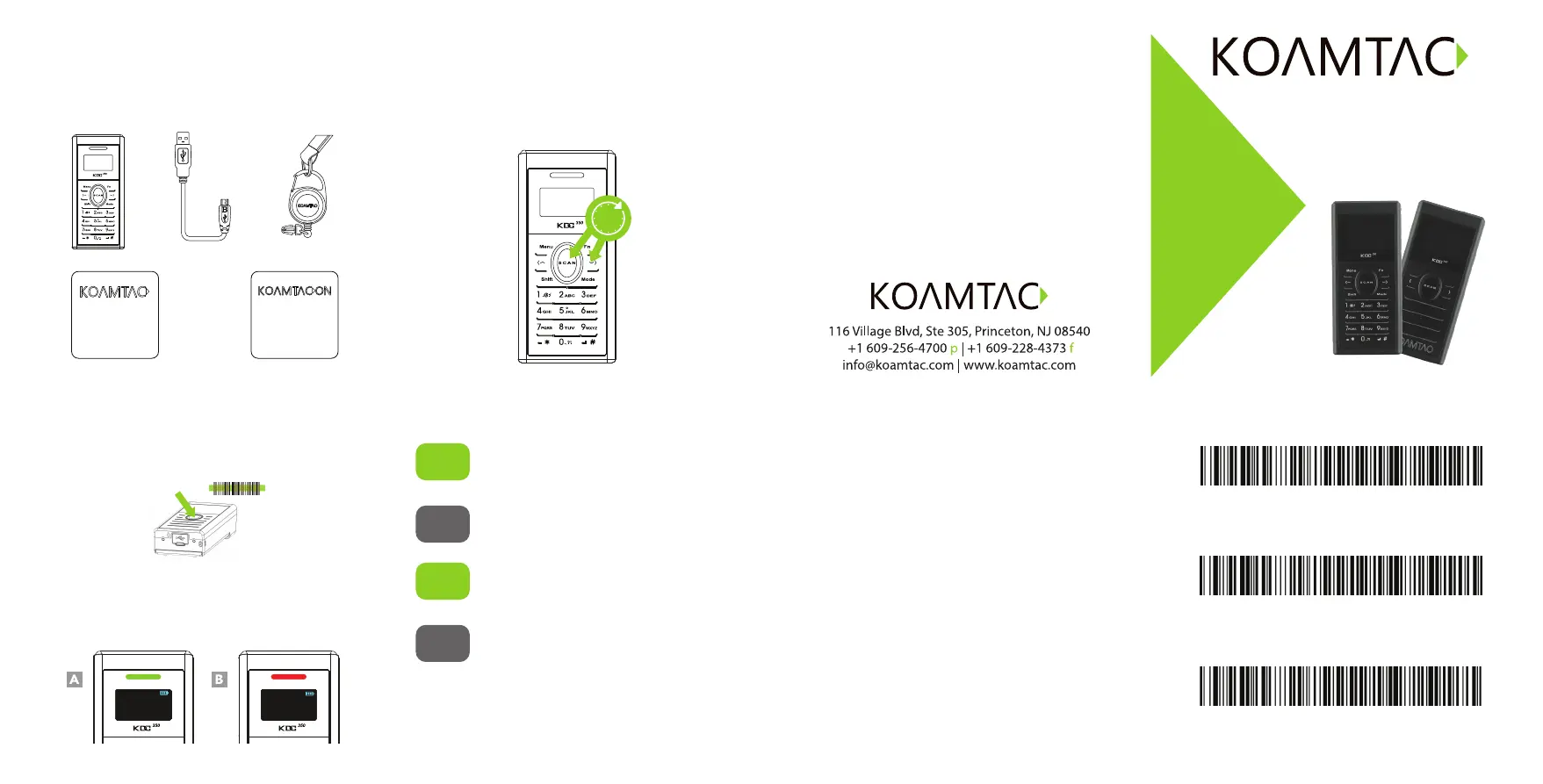
What’s in the Box?Additional Accessories
KDC350
Mini Guide
• KDC350
•Ultra-mini USB Cable
• KDC
®
Lanyard
•Quick Manual
•KOAMTACON Guide
•Waterproof Finger Trigger Glove
•Protective Rubber Boot
•1130mAh Hardpack Battery
•1-Slot and 4-Slot Charging
Cradles
•Ultra-Mini USB Cable
•KBD401K Bluetooth
Classic Dongle
•Battery Charging Adaptor
•ezCharging Adaptor
Bluetooth Proles Explained
Powering On/Off
Power On
Press and hold the SCAN
and DOWN buttons for 3
seconds.
Power Off
Press and hold the SCAN
and DOWN buttons for 3
seconds again.
Basic Operation
1. Aim the KDC directly at the barcode and press the
SCAN button, ensuring the beam covers the barcode
horizontally.
2. A successful scan (A) will sound 1 beep, show a green
LED, and display the scanned info on the screen. An
unsuccessful scan (B) will sound 2 beeps, show a red
LED, and display “Read Failed” on the screen.
KDC350 Models
The KDC350 is available in models supporting NFC and/or Wi-Fi.
The KDC350 is also available in 3 or 19-key keypad models.
Fo a complete list of KDC350 models, please visit:
www.koamtac.com/bluetooth-barcode-scanners/kdc350-r2-wireless-b
arcode-scanner
02:35:41
123456
Read
Failed
3s
Allows one-way Bluetooth communication
with an Android, Mac, and Windows host
device. The KDC only transmits data to the
host device.
HID
Normal
Allows two-way Bluetooth communication.
The KDC transmits data to host device and
the host can transmit data back to the KDC.
SPP
Allows one-way Bluetooth communication
with an iOS host device. The KDC only
transmits data to the iOS host device.
HID
iOS
MFi
Allows two-way Bluetooth communication
with an iOS host device. The KDC transmits
data to an iOS host device and the iOS host
can transmit data back to the KDC.
HID inputs data directly into an application. Both SPP
and MFi require KOAMTAC KTSync
®
app or integration
of the KOAMTAC SDK to input data into an application.
1. Navigate to the Bluetooth setting on the host PC,
Mac, Smartphone, or Tablet.
2. Ensure that Bluetooth is enabled on the host device
and searching for devices.
3. Using the KDC, scan the pairing barcode that
corresponds to your desired Bluetooth profile. If you
are unsure which Bluetooth profile is right for you,
please refer to the previous panel.
4. Check the list of available Bluetooth devices on your
host device.
5. From the list, select KDC350 listed by serial number
in brackets that matches the serial number found on
the back side of the KDC350.
6. In HID mode, KDC350 is now ready to use.
7. To complete connection in SPP/MFi mode, launch
KTSync or your application and select KDC350.
* The KDC350 will beep when successfully connected.
Pairing & Connecting
Pairing Barcodes
Android, Mac, Windows: HID Normal
SPP & MFi
iOS: HID iOS
Specyfikacje produktu
| Marka: | Koamtac |
| Kategoria: | czytnik kodów kreskowych |
| Model: | KDC350 |
Potrzebujesz pomocy?
Jeśli potrzebujesz pomocy z Koamtac KDC350, zadaj pytanie poniżej, a inni użytkownicy Ci odpowiedzą
Instrukcje czytnik kodów kreskowych Koamtac

1 Października 2024
1 Października 2024
1 Października 2024
1 Października 2024
1 Października 2024
1 Października 2024
1 Października 2024
1 Października 2024
1 Października 2024
Instrukcje czytnik kodów kreskowych
Najnowsze instrukcje dla czytnik kodów kreskowych
1 Kwietnia 2025
1 Kwietnia 2025
1 Kwietnia 2025
27 Lutego 2025
27 Lutego 2025
27 Lutego 2025
25 Lutego 2025
21 Lutego 2025
21 Lutego 2025
20 Lutego 2025