Instrukcja obsługi StarTech.com DKT31CHPDL
StarTech.com Inne akcesoria komputerowe DKT31CHPDL
Przeczytaj poniżej 📖 instrukcję obsługi w języku polskim dla StarTech.com DKT31CHPDL (2 stron) w kategorii Inne akcesoria komputerowe. Ta instrukcja była pomocna dla 13 osób i została oceniona przez 3 użytkowników na średnio 4.6 gwiazdek
Strona 1/2
Quick-Start Guide
To view manuals, FAQs, videos, drivers, downloads, technical drawings, and more, visit www.startech.com/support.
Manual Revision: October 7, 2020
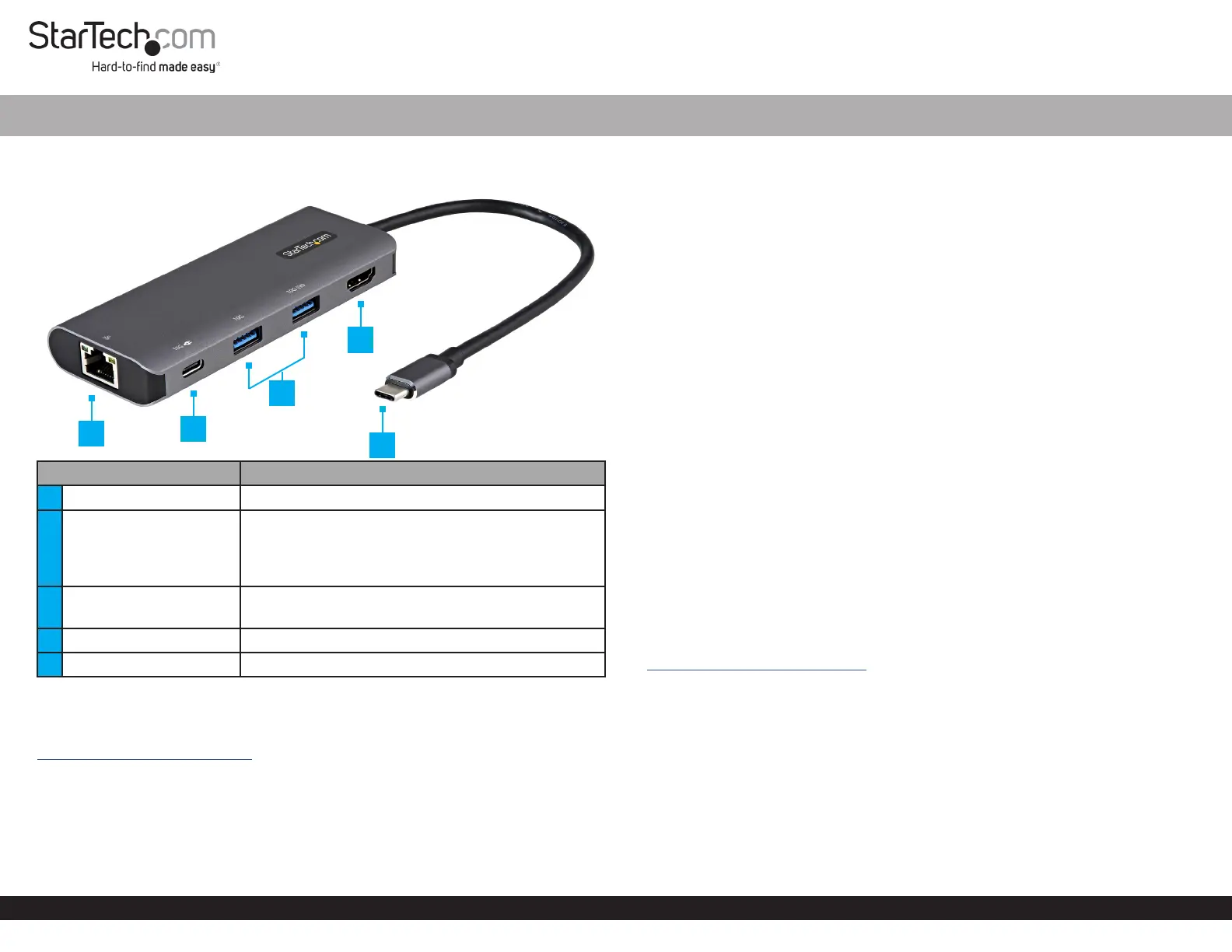
Product Diagram (DKT31CHPDL)
Side View
PortFunction
1RJ45 Port• Connect a Network Cable
2USB-C Port
• Connect a USB-C Storage Device (e.g. ash drive),
or USB-C Peripheral Device
• Connect the Host Computer’s Power Adapter for
Power DeliveryPass Through
3USB-A Ports
• Connect a USB-A Peripheral Device
• Charge a USB-A Peripheral
4HDMI Output Port• Connect an HDMI Display Device
5USB-C Host Connector• Connect to a Laptop or Computer
Requirements
For the latest requirements and to view the full manual, please visit:
www.startech.com/DKT31CHPDL.
• Host Computer with USB-C Port
USB-C™ (10 Gbps) Multiport Adapter with HDMI, 85W Power Delivery Pass Through, GbE 2x USB-A & 1x USB-C
Installation
Powering the Multiport Adapter
USB Bus Power Mode (from Laptop):
The Multiport Adapter can be powered by the Host Computer’s USB-C Port and
does not require a separate power adapter for most device connections.
USB Power Delivery Pass Through Mode:
If you want to charge your Laptop through the Multiport Adapter, or need additional
power to support a USB Device requiring more power, follow these steps:
1. Connect the Multiport Adapter to a USB-C Port on the Host Computer using the
USB-C Host Connector.
2. Connect the USB-C Connector from the Host Computer’s Power Adapter to the
USB-C Port on the Multiport Adapter.
3. The Host Computer’s Power Adapter will power the Multiport Adapter and pass
power through to the Host Computer.
Windows 7 (and earlier) Driver Installation
1. If the Found New Hardware dialog box appears on your screen, close the dialog
box or click Cancel.
Note: Once the Multiport Adapter is connected to the Computer, if no existing
Drivers are found, it will load a CD-ROM Device that contains an executable le that
you can use to install the Driver.
2. After the CD-ROM Device nishes loading, run the Installation File.
3. Complete the on-screen instructions to nish the installation.
Note: You can also download the latest software from the StarTech.com website,
www.StarTech.com/DKT31CHPDL.
Connecting a Display
• Connect an HDMI M/M Cable to the HDMI Output Port on the Multiport Adapter
and to the HDMI Input Port on the HDMI Display Device.
Connect to a Network
• Connect a Network Cable to the RJ45 Port on the Multiport Adapter and to the
Network Device.
1
2
5
4
3
Specyfikacje produktu
| Marka: | StarTech.com |
| Kategoria: | Inne akcesoria komputerowe |
| Model: | DKT31CHPDL |
Potrzebujesz pomocy?
Jeśli potrzebujesz pomocy z StarTech.com DKT31CHPDL, zadaj pytanie poniżej, a inni użytkownicy Ci odpowiedzą
Instrukcje Inne akcesoria komputerowe StarTech.com

28 Grudnia 2024
28 Grudnia 2024
28 Grudnia 2024
7 Grudnia 2024
7 Grudnia 2024
9 Października 2024
9 Października 2024
7 Października 2024
5 Października 2024
2 Października 2024
Instrukcje Inne akcesoria komputerowe
Najnowsze instrukcje dla Inne akcesoria komputerowe
3 Kwietnia 2025
3 Kwietnia 2025
1 Kwietnia 2025
12 Marca 2025
22 Lutego 2025
20 Lutego 2025
20 Lutego 2025
20 Lutego 2025
20 Lutego 2025
20 Lutego 2025