Instrukcja obsługi Crestron CCS-UCA-SMK
Crestron System wideokonferencji CCS-UCA-SMK
Przeczytaj poniżej 📖 instrukcję obsługi w języku polskim dla Crestron CCS-UCA-SMK (2 stron) w kategorii System wideokonferencji. Ta instrukcja była pomocna dla 40 osób i została oceniona przez 6 użytkowników na średnio 4.6 gwiazdek
Strona 1/2
DOGUIDE
CCS-UCA-SMK
Swivel Mount Kit for Crestron Mercury™ Tabletop Conference System
DO Prepare the Mounting Location
NOTE: The mounting surface should have a thickness of 1" (25 mm) to 1-3/8" (34 mm).
The kit includes a template that is used to mark the location of the mounting hole on top of the mounting surface, and the location of the stop plate under the
mounting surface. When using the template, make sure the arrow on the template points toward the front edge of the mounting surface.
1. Secure the template to a mounting location that allows the full pivot of the device on the top of the mounting surface and a close mounting location for
accessories beneath the mounting surface.
2. Place 2" painters tape (not included) on the hole location and mark the hole on the tape.
3. Drill a 1-3/16" (30 mm) mounting hole in the marked location on the tape.
4. Relocate the template to the underside of the mounting surface and orient it so that the arrow on the template points toward the front edge of the table.
Verify that the template location of the stop plate permits the Crestron Mercury™ device to swivel.
DO Install the Cable Retention Bracket
NOTE: If a cable retention plate is already installed, it must be removed. For new installations, skip to step 3. Otherwise, follow this procedure:
1. Use two small at head screwdrivers to slowly pry off the existing retention plate.
2. Remove all adhesive residue from the surface.
3. Clean the surface with an alcohol wipe (not supplied).
4. Remove the paper liner from the back of the cable retention bracket.
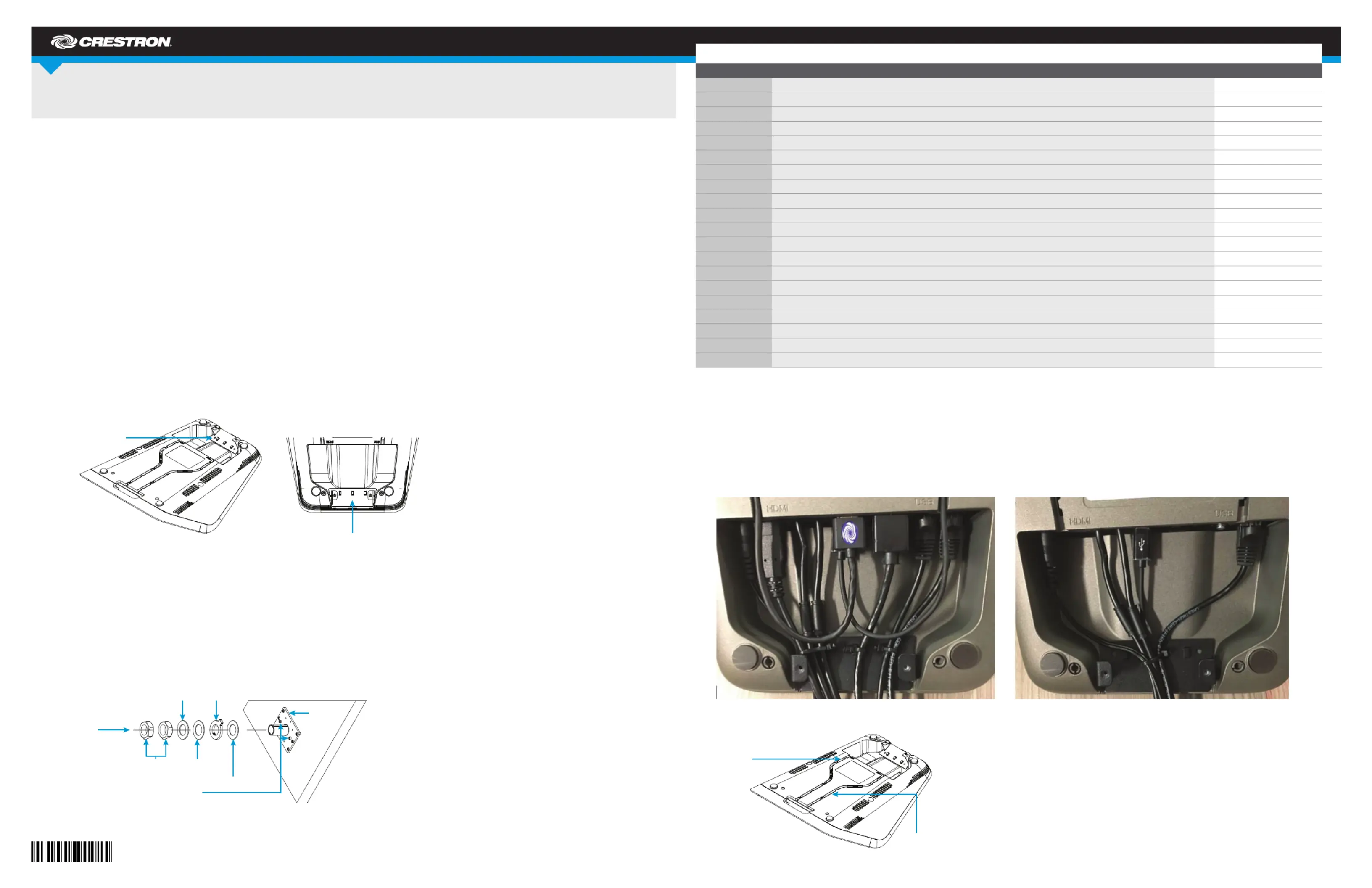
5. Install the cable retention bracket as shown in the following diagram.
6. Press rmly on the cable retention bracket for approximately 30 seconds.
CAUTION: When turning over the device, place the device on a soft surface to avoid damage to the unit.
DO Connect the Device
1. Drill pilot holes with a 1/8" bit in the stop plate’s mounting location and attach the stop plate to the underside of the mounting surface with the six
included 8-8B x 1/2" screws.
2. Place the swivel tube plate on the mounting surface.
3. Route all cables that connect to the Crestron Mercury device from underneath the mounting surface through the swivel kit hardware as shown below.
Cables with larger connectors should be routed rst, followed by cables with smaller connectors.
If the HDMI
®
input cable and the USB cable are to be routed to the front of the Crestron Mercury device, do not route these cables through the swivel kit
hardware.
DO Check the Box
QUANTITYPRODUCTCOLORPART NUMBER
1Bit, Slotted 1/4" W2049730
1Bit, Slotted 23/64" W2049474
1Bracket, Cable Retention4526653
1Cable, HDMI, Male to Female Extender2049637
4Insert, Metal, M7, 6-32 Thread, 0.28" L2049476
2Insert, Metal, M10, 10-32 Thread, 0.41" L2049328
2Nut, 1-1/8"-122049390
2Screw, 4-40 x 1/4", Pan Head, PhillipsBlack2007158
2Screw, 6-32 x 1/2", Pan Head, PhillipsBlack2007238
2Screw, 6-32 x 1", Truss Head, PhillipsBlack2049649
6Screw, 8-8B x 1/2", Pan Head, Phillips2017784
2Screw, 8-32 x 1/8", Cap Head, SocketBlack2017634
2Screw, 10-32 x 1", Pan Head, PhillipsBlack2049391
1Stop Plate, Swivel, with Screws4526651
1Template, Cutout4526654
5Tie Wrap2047935
1Washer, Cork, 2.0" OD, 1.19" ID, 0.06" TH2049448
1Washer, Keyed4526609
1Washer, Metal, 2.0" OD, 1.19" ID, 0.10" TH2049389
1Washer, Rubber, 2.0" OD, 1.19" ID, 0.06" TH2049449
If the Crestron Mercury device’s HDMI OUT port is to be used, perform the following procedure:
a. Connect the HDMI Extension Cable (2049637) to the HDMI OUT port.
b. Route the cable extender through the swivel tube.
c. Connect the HDMI cable provided with the Crestron Mercury device to the cable extender.
4. Make the necessary connections to the device. Refer to the DO Guide or Installation Guide included with the Crestron Mercury system.
5. Use the included tie wraps to secure all of the cables to the cable retention bracket that was installed in “DO Install the Cable Retention Bracket.”
6. If the front USB and HDMI input connections are to be used, press the USB and HDMI IN cables into the channels on the underside of the device as
shown in the following diagram (cables removed for clarity) so that the connectors can be routed to the front of the device.
Stop plate
Cork washer
Keyed washer
Nuts (2)
Permanently installed
limiting screws
Rubber washer
Flat washer
Thread cables
through here.
Standard WiringZoom Wiring
Cable retention bracket
Cable retention bracket
Route USB
cable here
Route HDMI
cable here
Specyfikacje produktu
| Marka: | Crestron |
| Kategoria: | System wideokonferencji |
| Model: | CCS-UCA-SMK |
Potrzebujesz pomocy?
Jeśli potrzebujesz pomocy z Crestron CCS-UCA-SMK, zadaj pytanie poniżej, a inni użytkownicy Ci odpowiedzą
Instrukcje System wideokonferencji Crestron

1 Kwietnia 2025
21 Grudnia 2024
21 Grudnia 2024
21 Grudnia 2024
21 Września 2024
Instrukcje System wideokonferencji
Najnowsze instrukcje dla System wideokonferencji
20 Lutego 2025
7 Lutego 2025
12 Stycznia 2025
11 Stycznia 2025
4 Stycznia 2025
3 Stycznia 2025
26 Grudnia 2024
26 Grudnia 2024
26 Grudnia 2024
25 Grudnia 2024