Instrukcja obsługi StarTech.com PR12GI-NETWORK-CARD
StarTech.com Karta sieciowa/adapter PR12GI-NETWORK-CARD
Przeczytaj poniżej 📖 instrukcję obsługi w języku polskim dla StarTech.com PR12GI-NETWORK-CARD (2 stron) w kategorii Karta sieciowa/adapter. Ta instrukcja była pomocna dla 41 osób i została oceniona przez 3 użytkowników na średnio 4.3 gwiazdek
Strona 1/2
Quick-Start Guide
To view manuals, FAQs, videos, drivers, downloads, technical drawings, and more, visit www.startech.com/support
Manual Revision: December 14, 2023
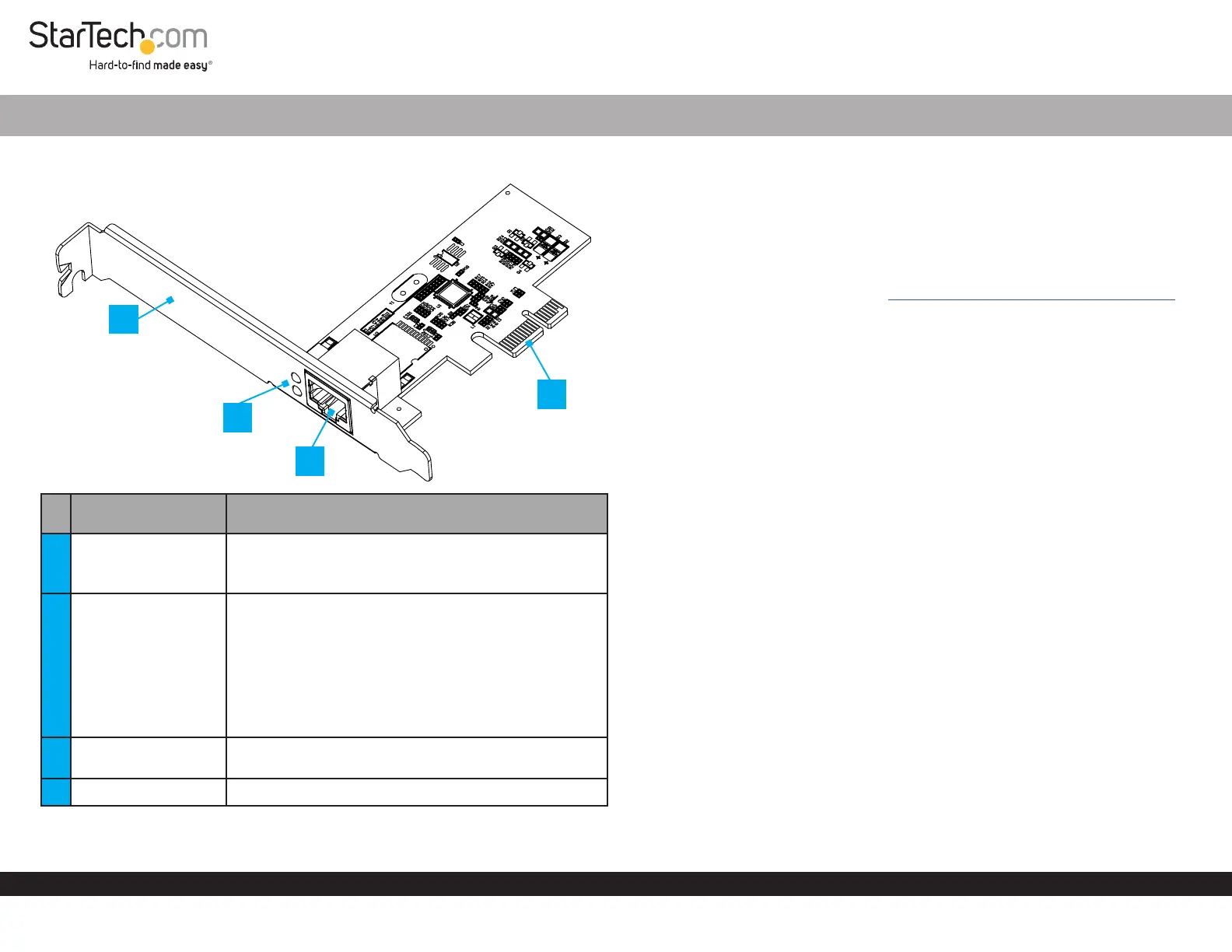
Product Diagram (PR12GI-NETWORK-CARD)
Port/LED/ConnectorFunction
1Bracket
• Secures the card to the Host Computer Case
• The Full Prole Bracket comes pre-installed
• The Low Prole Bracket is included
2
LED Indicators
(As seen on image)
• TopLED Indicator is 1000/100/10 MbpsLink
Activity
• Solid Green: 1000/100/10 Mbps
• Flashing Green: Activity
• BottomLED Indicator is 2.5 Gbps Link /Activity
• Solid Green: 2.5 Gbps
• Flashing Green: Activity
3Ethernet Port
• Connect a Network Cable to the Network Card
• Supports 2.5 Gbps, 1 Gbps, 100 Mbps, and 10 Mbps
4PCIe 2.0 p1-x1 Connector• Insert into a PCI Express Slot on the Host Computer
1-Port PCIe 2.5G Ethernet Network Adapter Card - Intel
Package Contents
• 1-Port PCIe 2.5 Gbps Network Card x 1
• Low Prole Bracket x 1
• Quick-Start Guide x 1
Requirements
For the latest requirements, please visit www.startech.com/PR12GI-NETWORK-CARD
• Host computer with an available PCI Express 2.0 or greater slot (x1, x2, x4, x8, or x16)
Installation
Install the PCI Express Card
WARNING!
Static Electricity can severely damage PCI Express Cards. Ensure that you are
adequately Grounded before you open your Host Computer Case or touch the PCI
Express Card. You should wear an Anti-Static Strap or use an Anti-Static Mat when
installing any Host Computer component. If an Anti-Static Strap isn’t available,
discharge any built-up static electricity by touching a large Grounded Metal Surface
for several seconds. Only handle the PCI Express Card by its edges and don’t touch the
gold connectors.
1. Turn o the Host Computer and any Peripheral Devices that are connected to it
(e.g. printers, external hard drives, etc.).
2. Unplug the Power Cable from the back of the Host Computer.
3. Disconnect any Peripheral Devices that are connected to the Host Computer.
4. Remove the Cover from the Host Computer Case. Consult the documentation that
came with the Host Computer for details about doing this safely.
5. Locate an open PCI Express Slot and remove the corresponding Slot Cover Plate
from the back of the Host Computer Case.
Note: Consult the documentation that came with the Host Computer for details about
doing this safely.
This card works in PCI Express x1, x2, x4, x8, or p1-x16 Slots.
6. Gently insert the PCI Express Card into the open PCI Express Slot and fasten the
Bracket to the back of the Host Computer Case.
Note: If you install the PCI Express Card into a Small Form Factor or a Low Prole
Desktop System, it may be necessary to replace the pre-installed standard
4
1
*Product may vary from image
3
2
Specyfikacje produktu
| Marka: | StarTech.com |
| Kategoria: | Karta sieciowa/adapter |
| Model: | PR12GI-NETWORK-CARD |
Potrzebujesz pomocy?
Jeśli potrzebujesz pomocy z StarTech.com PR12GI-NETWORK-CARD, zadaj pytanie poniżej, a inni użytkownicy Ci odpowiedzą
Instrukcje Karta sieciowa/adapter StarTech.com

14 Stycznia 2025
8 Stycznia 2025
28 Grudnia 2024
9 Października 2024
9 Października 2024
9 Października 2024
9 Października 2024
9 Października 2024
9 Października 2024
9 Października 2024
Instrukcje Karta sieciowa/adapter
Najnowsze instrukcje dla Karta sieciowa/adapter
8 Kwietnia 2025
3 Kwietnia 2025
3 Kwietnia 2025
2 Kwietnia 2025
2 Kwietnia 2025
1 Kwietnia 2025
30 Marca 2025
29 Marca 2025
14 Marca 2025
14 Marca 2025