Instrukcja obsługi StarTech.com ST10GSPEXNDP
StarTech.com Karta sieciowa/adapter ST10GSPEXNDP
Przeczytaj poniżej 📖 instrukcję obsługi w języku polskim dla StarTech.com ST10GSPEXNDP (2 stron) w kategorii Karta sieciowa/adapter. Ta instrukcja była pomocna dla 28 osób i została oceniona przez 2 użytkowników na średnio 4.5 gwiazdek
Strona 1/2
Quick-Start Guide
To view manuals, FAQs, videos, drivers, downloads, technical drawings, and more, visit www.startech.com/support.
Manual Revision: December 10, 2018 1:22 PM
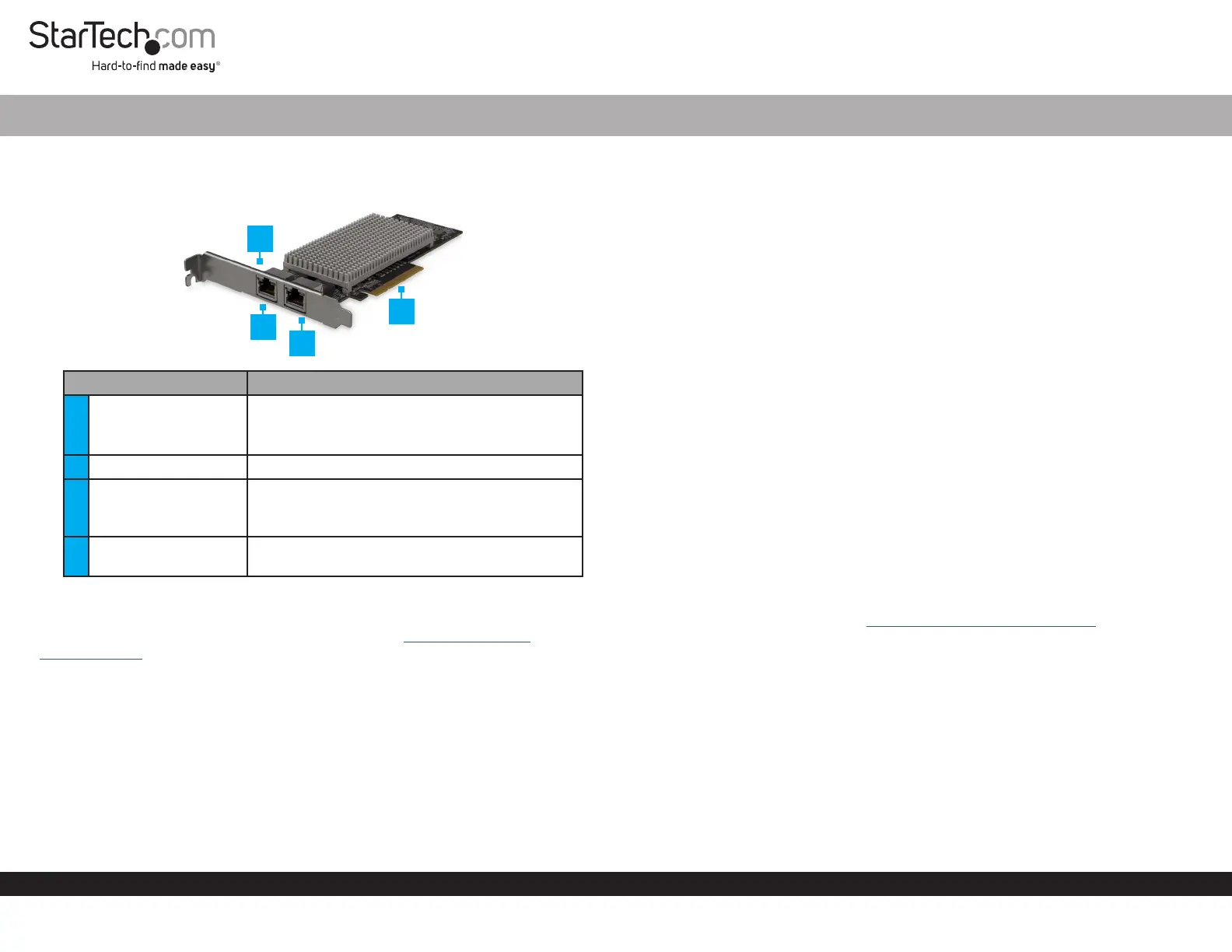
Product Diagram (ST10GSPEXNDP)
Port/LEDFunction
1Link Speed LED
• Solid Amber: Link speed is 10G.
• Solid Green: Link speed is 1G.
• O: Link speed is 100G.
2Ethernet Port• Used to connect a Network Device.
3
Link State LED/
Activity LED
• Solid Green: The Network Card is connected
to a network.
• Flashing: Indicates activity.
4PCIe p1-x8 Connector
• Used to connect the Network Card to a
Computer.
Requirements
For the latest requirements and full manual, please visit www.startech.com/
ST10GSPEXNDP.
• PCI Express enabled computer with an available PCI Express slot (x8 or x16)
• Operating systems:
• Microsoft® Hyper-V®
• Windows® 7, 8, 8.1, 10
• Windows Server® 2003, 2008 R2, 2012
• Linux® kernel 2.6.x and 3.x
Dual-Port 10GBase-T / NBase-T Ethernet Network Card | PCI Express
1
Installation
Installing the Network Card
Note: Network cards can be severely damaged by static electricity. Make sure that
you’re properly grounded before you open your computer case or touch the PCIe card.
1. Turn o the Computer and any connected Devices (e.g. printers, etc.).
2. Disconnect any connected Devices and unplug the power cable from the
Computer.
3. Open the Computer Case. For more information, consult the user manual that came
with the Computer.
4. Locate a PCI Express Slot (x8 or x16) and remove the corresponding metal cover
plate from the back of the Computer Case.
5. Gently insert the PCIe p1-x8 Connector on the Network Card into the PCI Express
Slot (x8 or x16) on the Computer.
6. Use a Computer Case Screw to fasten the Bracket on the Network Card to the
back of the Computer Case.
7. Place the cover back onto your Computer Case.
8. Reconnect all Cables and Devices and turn the Computer back on.
Installing the Driver
1. On the Found New Hardware pop-up, click the Cancel button.
2. Using a web browser, navigate to www.startech.com/ST10GSPEXNDP.
3. On the Product page, click the Support tab located in the middle of the screen.
4. In the Drivers and Downloads section, click on the driver link that corresponds with
the operating system running on the Host Computer.
5. Once the download is complete, extract the contents of the .ZIP le.
6. Click the appropriate driver for the version of operating system that you are running
and follow the on-screen prompts to complete the installation.
2
3
4
Specyfikacje produktu
| Marka: | StarTech.com |
| Kategoria: | Karta sieciowa/adapter |
| Model: | ST10GSPEXNDP |
Potrzebujesz pomocy?
Jeśli potrzebujesz pomocy z StarTech.com ST10GSPEXNDP, zadaj pytanie poniżej, a inni użytkownicy Ci odpowiedzą
Instrukcje Karta sieciowa/adapter StarTech.com

14 Stycznia 2025
8 Stycznia 2025
28 Grudnia 2024
9 Października 2024
9 Października 2024
9 Października 2024
9 Października 2024
9 Października 2024
9 Października 2024
9 Października 2024
Instrukcje Karta sieciowa/adapter
Najnowsze instrukcje dla Karta sieciowa/adapter
8 Kwietnia 2025
3 Kwietnia 2025
3 Kwietnia 2025
2 Kwietnia 2025
2 Kwietnia 2025
1 Kwietnia 2025
30 Marca 2025
29 Marca 2025
14 Marca 2025
14 Marca 2025