Instrukcja obsługi StarTech.com PEXHDCAP4K
StarTech.com Niesklasyfikowane PEXHDCAP4K
Przeczytaj poniżej 📖 instrukcję obsługi w języku polskim dla StarTech.com PEXHDCAP4K (2 stron) w kategorii Niesklasyfikowane. Ta instrukcja była pomocna dla 21 osób i została oceniona przez 4 użytkowników na średnio 4.6 gwiazdek
Strona 1/2
Quick-Start Guide
To view manuals, FAQs, videos, drivers, downloads, technical drawings, and more, visit www.startech.com/support.
Manual Revision: May 20, 2021 8:27 PM
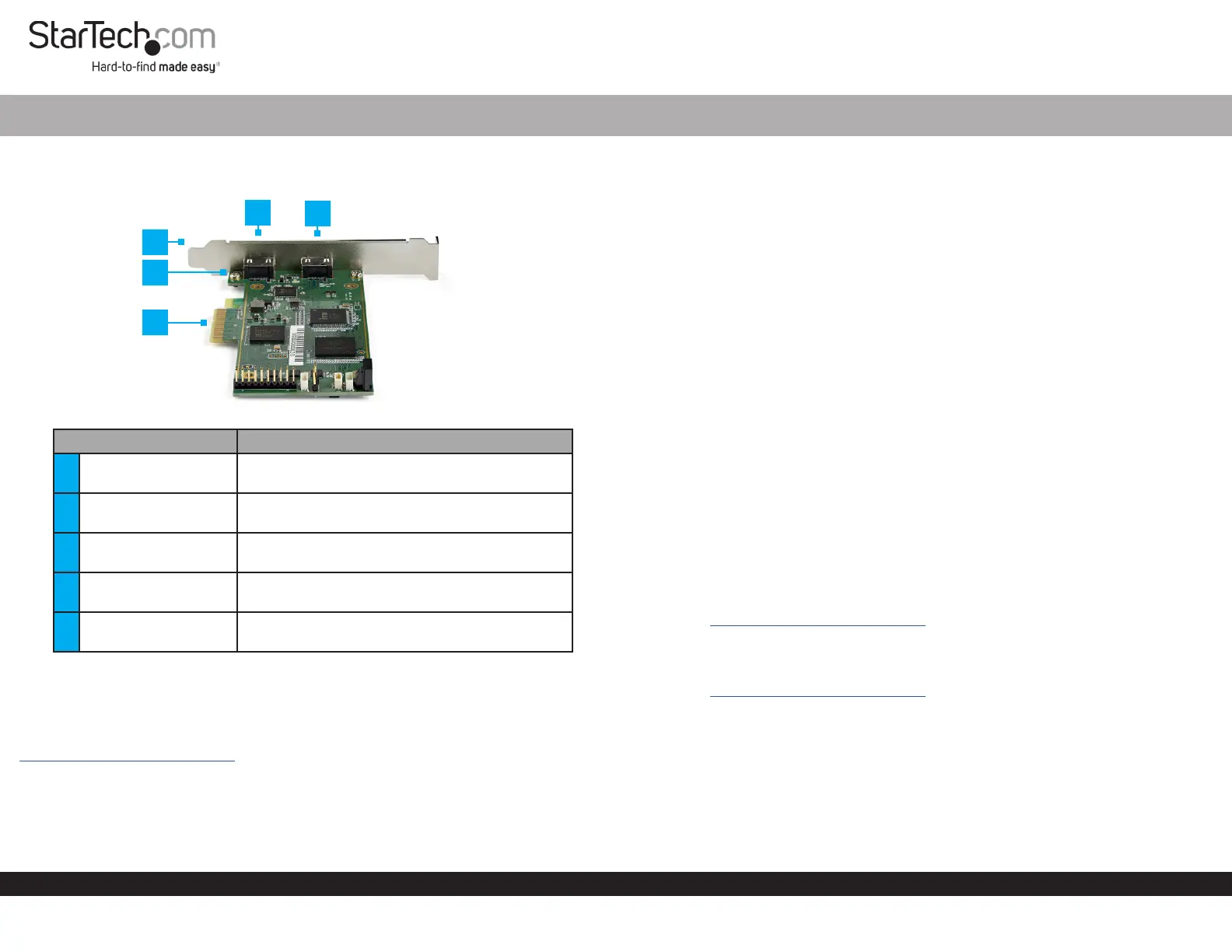
Product Diagram (PEXHDCAP4K)
ComponentFunction
1
Standard Prole
Bracket
• Used to securely attach the Video Capture
Card to the Host Computer.
2Bracket Screws
• Used to secure the Standard or Low Prole
Bracket to the Video Capture Card.
3PCIe Connector
• Used to connect the Video Capture Card to a
PCIe Port.
4HDMI Input Port
• Used to connect an HDMI Device to the Video
Capture Card.
5HDMI Output Port
• Used to connect an HDMI Display Device to
the Video Capture Card.
Product Information & Requirements
For the latest drivers, software, manuals, product information, technical specications,
and declarations of conformance, please visit:
www.startech.com/PEXHDCAP4K
• Tools:
• Phillips Head Screwdriver x 1
• Operating System:
• Windows 10, 8.1, 8, and 7
PCI Express Video Capture Card | HDMI | 4K 60Hz | 60fps
Installation
Warning! Video Capture Cards, can be severely damaged by static electricity. Be sure
that you are properly grounded before opening your computer case or touching your
card. Be careful to handle the card by its edges and not the gold connectors.
1. Turn o the Host Computer and all connected Peripheral Devices (e.g. printer,
external hard drives, etc.).
2. Unplug the Power Cable from the Host Computer.
3. Remove the cover from the Host Computer’s Case.
Note: Refer to the documentation that came with your computer for further
information on how to properly remove the computer case.
4. Locate a PCIe Slot and remove the Metal Cover Plate.
Note: Refer to the documentation that came with your computer for further
information on how to properly remove the metal cover plate.
5. Gently insert the PCIe Connector on the Video Capture Card into the PCI Express
Slot.
6. Using the screws removed from the Metal Cover Plate and a Phillips Head
Screwdriver, secure the Video Capture Card to the rear of the computer case.
7. Place the cover back over the computer case.
8. Reconnect the Power Cable and Peripheral Devices to the Host Computer and
power the Host Computer On.
Driver Installation
Navigate to www.startech.com/PEXHDCAP4K and select the Drivers/Downloads tab
to locate and download the latest Driver.
Software Installation
Navigate to www.startech.com/PEXHDCAP4K and select the Drivers/Downloads
tab to locate and download the latest Windows Video Capture Software and the
accompanying Software User Guide.
4
1
3
2
5
Specyfikacje produktu
| Marka: | StarTech.com |
| Kategoria: | Niesklasyfikowane |
| Model: | PEXHDCAP4K |
Potrzebujesz pomocy?
Jeśli potrzebujesz pomocy z StarTech.com PEXHDCAP4K, zadaj pytanie poniżej, a inni użytkownicy Ci odpowiedzą
Instrukcje Niesklasyfikowane StarTech.com

9 Stycznia 2025
9 Stycznia 2025
9 Stycznia 2025
9 Stycznia 2025
9 Stycznia 2025
8 Stycznia 2025
8 Stycznia 2025
8 Stycznia 2025
8 Stycznia 2025
8 Stycznia 2025
Instrukcje Niesklasyfikowane
Najnowsze instrukcje dla Niesklasyfikowane
29 Stycznia 2025
29 Stycznia 2025
29 Stycznia 2025
29 Stycznia 2025
29 Stycznia 2025
29 Stycznia 2025
29 Stycznia 2025
29 Stycznia 2025
29 Stycznia 2025
29 Stycznia 2025